
What is Windows Sysmon?
In the case of monitoring Windows systems, Windows Sysmon is the go-to tool, developed by Microsoft as part of the Sysinternals suite. Coming hotfooting from the Microsoft labs, Sysmon gives IT professionals and security teams a deep dive into the workings of their systems and allows them to investigate suspicious activity in Windows environments.
The primary purpose of Sysmon is to log system events, something that can be scrutinized to spot the latest malicious activities.
With visibility into the entire operating environment, Sysmon plays a huge part in the battle against cyber threats.
Sysmon blends perfectly with other Windows security tools, particularly Windows Event Viewer and SIEM systems. By pooling data from all these sources, security teams can join the dots and see exactly what’s going on, which is fantastic for companies that want to have watertight security logs for compliance and audit purposes.
Key Features and Capabilities of Sysmon
In today’s world where cyber threats are getting ever more sophisticated, tools like Windows Sysmon are the backbone of a well-rounded system monitoring setup, and are basically necessary for any organization to stay on top of what’s going on in their digital environment. Examining monitoring and managing Windows environments, Sysmon is an essential component of the Windows Sysinternals suite. Its ability to log process creation events is a fundamental feature, in which it meticulously captures application launches with command lines, process IDs and timestamps that, for example, will help experts pick out anything suspicious, coming hotfooting into a system.
Another major feature of Sysmon is the logging of changes to file creation times.
A feature that lets security pros dig deeper into the kind of manipulation of file metadata that’s used by malware to hide its tracks, and when combined with its monitoring of network activity, gives administrators a crystal-clear picture of system activity.
Sysmon also keeps an eye on the creation of new files and registry keys, and is particularly useful in forensic investigations to see what changes have been made by unauthorized users or programs, and will also flag driver loading operations that can be the giveaway sign of rootkits and other kernel-level malware.
Sysmon is very flexible, too, and gives users the power to customise its operation to zero in on the events that matter most to them. It lets them set rules to filter out noise and unimportant data, and focus in on the really critical information that’s specific to their systems.
Tutorial
Let’s integrate Sysmon events into Wazuh
I – Downloading Sysmon
First of all, you will need two files.
Download Sysmon from the following link and extract the content of the zip file:
https://learn.microsoft.com/en-us/sysinternals/downloads/sysmon#configuration-files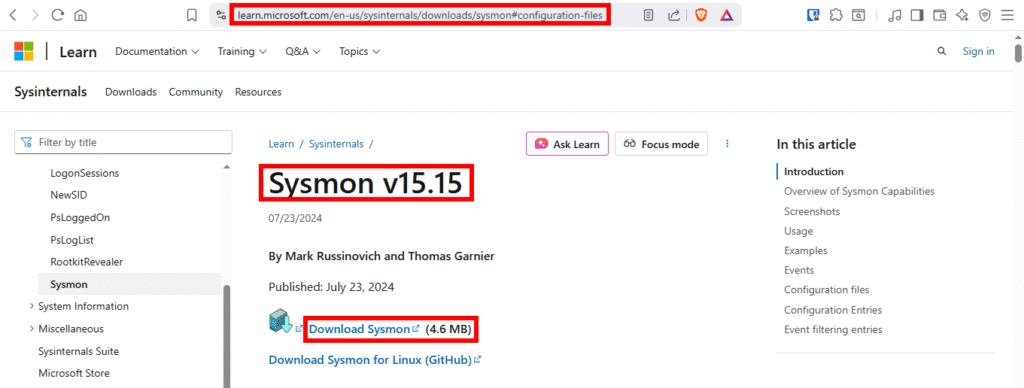
Then download a Sysmon configuration file (.xml) from the following link and place it in the Sysmon folder:
https://github.com/SwiftOnSecurity/sysmon-config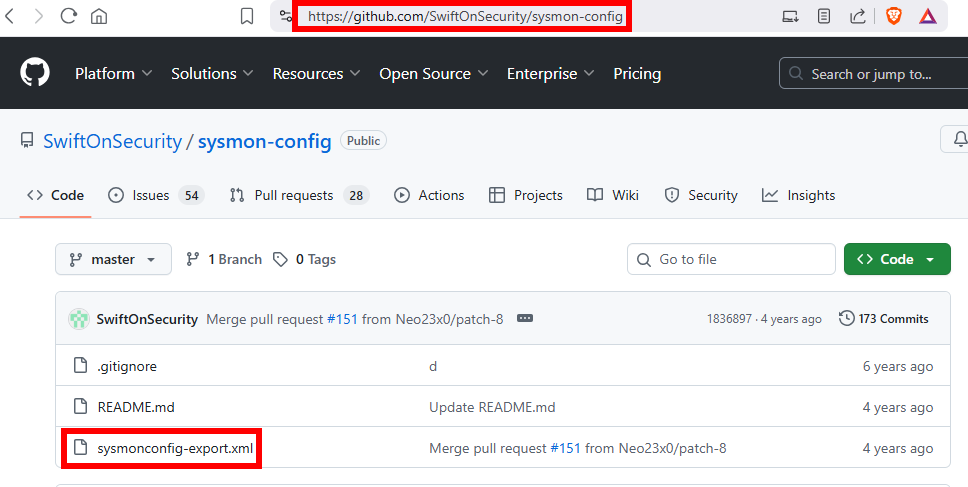
Note:
It is highly recommended to use Notepad++ to edit this configuration.
You should now have the following Sysmon folder:

II – Installing Sysmon with Powershell
Run the following commands as administrator on the Sysmon folder:
cd C:\Users\Lenovo\Downloads\SysmonThen run the dir command to display the content of your Sysmon folder
dir
Run the following command to install Sysmon. The “sysmonconfig-export.xml” file has to be specified
./sysmon64.exe -accepteula -i ./sysmonconfig-export.xml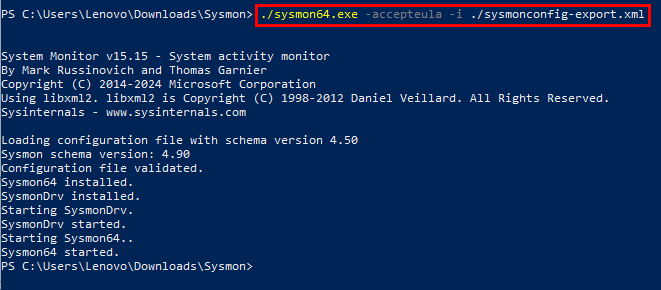
Check the Sysmon installation. Type in “services” in the search bar and click “services”
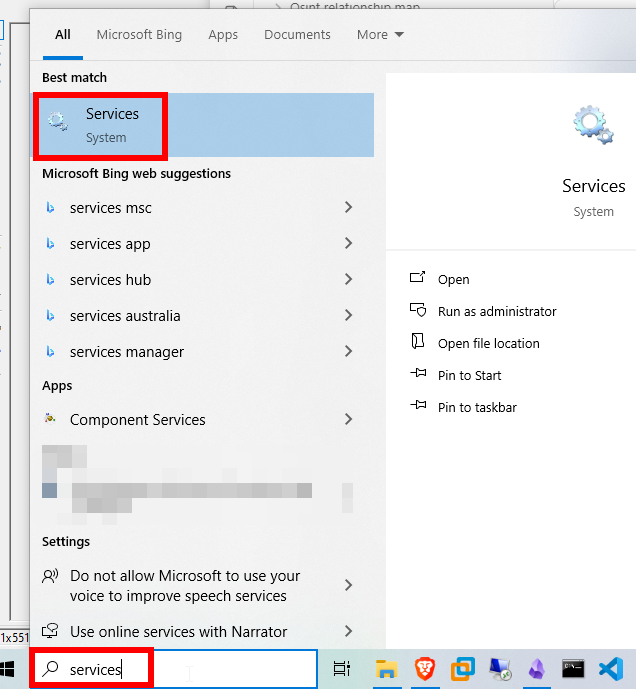
Scroll down until you find the Sysmon64 in the list of services

Check the Event viewer. Type in “event viewer” in the search bar and click “event viewer”
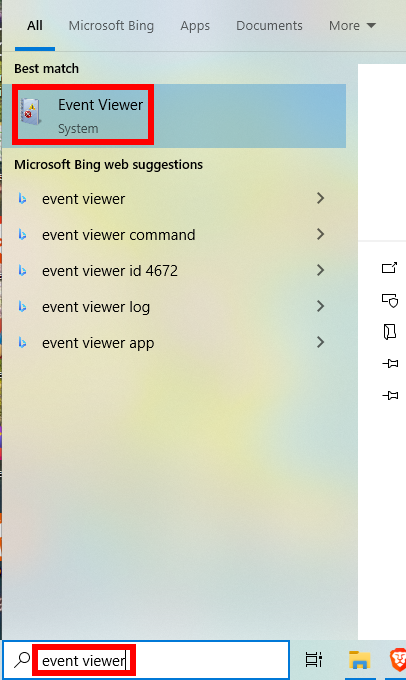
Check the Sysmon events by following the below path:
Applications and Services Logs / Microsoft / Windows / Sysmon:Operational

Sysmon installation and configuration are complete.
III – Sending logs to Wazuh
Open the “ossec.conf” (Path: C:\Program Files (x86)\ossec-agent) on the Windows endpoint and add the following parameter:
<localfile>
    <location>Microsoft-Windows-Sysmon/Operational</location>
    <log_format>eventchannel</log_format>
  </localfile>
Save the file then run the following command in Powershell to apply the changes:
Restart-Service -Name wazuh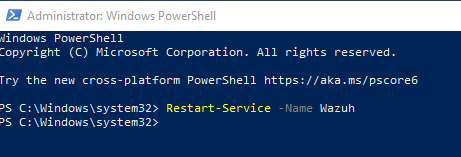
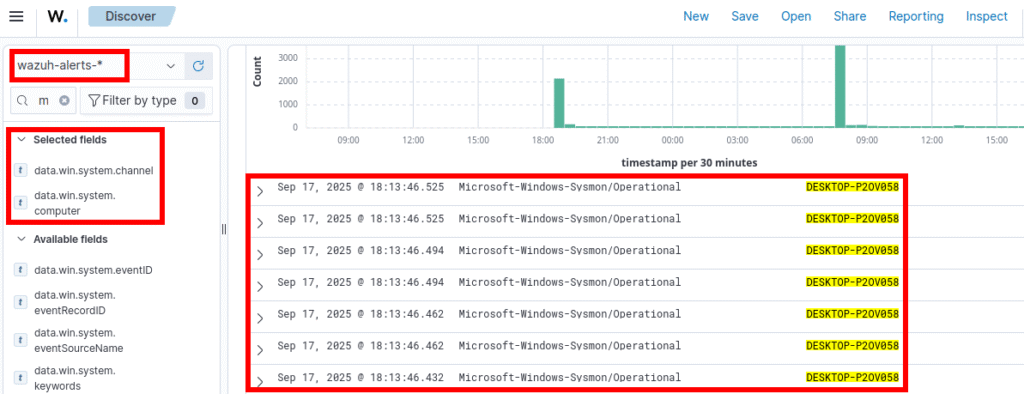
Log into your Wazuh’s dashboard. You will notice that Sysmon events are now displayed in the events tab (Explore –> Discover).
You can use the following fields to display Sysmon events:
data.win.system.channeldata.win.system.computer